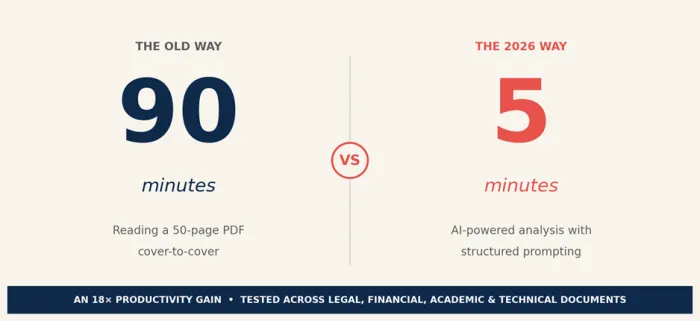
A 50-page PDF lands in your inbox at 9:47 a.m. The meeting starts at 10:00. Reading it cover-to-cover takes 75 to 90 minutes. Skipping it could cost the project. Two years ago, this was a real problem with no clean solution. In 2026, it is a 5-minute task - provided you know the workflow.
This guide is that workflow. It is not a feature roundup or a tool advertisement. It is the exact sequence professionals use to extract a complete, structured, citation-backed analysis from a long PDF in the time it takes to make a coffee. Every step has been tested across contracts, research papers, financial reports, and compliance documents.
If reading dense PDFs is part of your job and you are still doing it the way you did in 2023, you are spending five to ten hours every week on something that should take thirty minutes. Here is how to fix that.
THE 5-MINUTE METHOD AT A GLANCE Upload a clean, text-selectable PDF to Google NotebookLM, Claude, or Adobe Acrobat AI Assistant. Run a three-prompt sequence - overview, data extraction, critical read. Verify two or three key claims against the source. Reformat the output for your actual use case. Total time: under 5 minutes for a 50-page document. |
The 90-Minute Problem That AI Just Solved
The math behind PDF overload is brutal and getting worse. A typical 50-page report takes the average professional reader 75 to 90 minutes to digest properly. A 100-page technical document averages 2 to 3 hours of focused reading. Knowledge workers receive 10 to 20 such documents weekly - research papers, vendor reports, contracts, regulatory filings, internal memos.
That is a full work week consumed by reading alone, before any analysis, decision, or response happens.
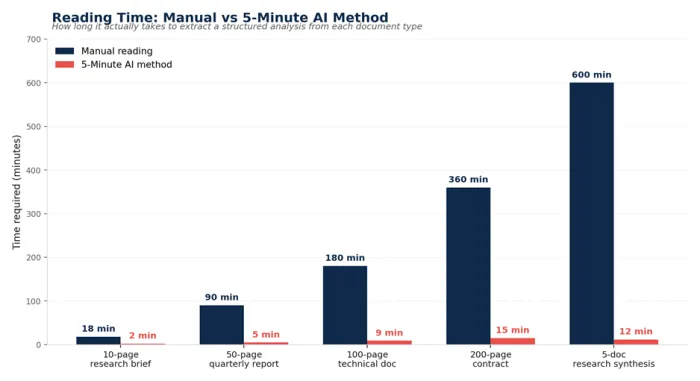
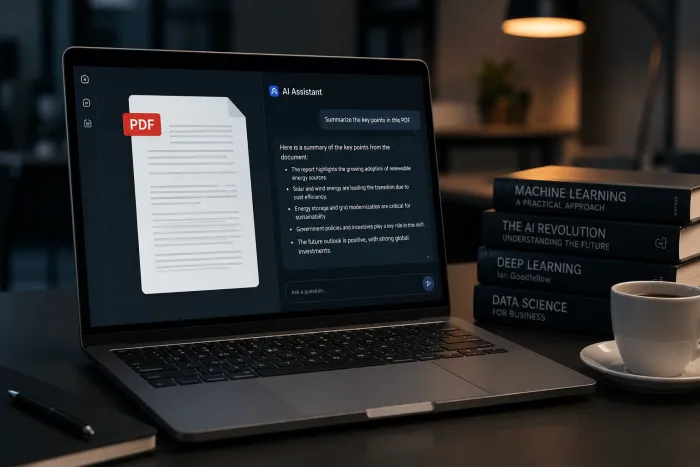
AI-powered document analysis collapses this timeline by an order of magnitude. Modern large language models combined with retrieval-augmented generation known as RAG can ingest a 50-page PDF and answer specific questions about it in under 30 seconds. The 5-minute target accounts for everything around the actual processing: file preparation, structured prompting, citation verification, and reformatting the output into something usable.
The shift from "read the whole thing" to "interrogate the document" is the single biggest productivity gain available to knowledge workers in 2026. The tools have matured. The methodology is documented. The only remaining bottleneck is knowing the workflow.
Why This Matters in 2026
The information density problem has worsened, not improved. Reports run longer. Contracts contain more clauses. Research papers cite more sources. Compliance documents reference more regulations. Yet attention spans and reading time have not expanded to match.
The global AI market was valued at $638 billion in 2024 and is projected to reach $3.68 trillion by 2034, with document intelligence among the fastest-growing segments. Tools that did not exist in 2022 - Google NotebookLM, Claude with a 200,000-token context window, Hebbia's Iterative Source Decomposition engine, Adobe Acrobat AI Assistant - now process documents that previously required a week of analyst time.
The tools have matured. The prompts are documented. The bottleneck is now knowing the workflow.
The 5-Minute Method: Step by Step
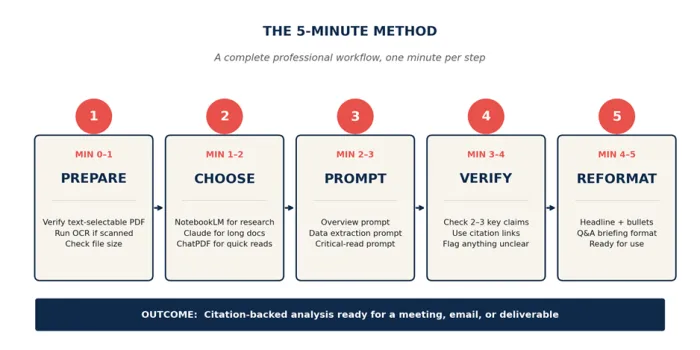
Each step below maps to roughly one minute. Together they form a complete professional workflow - not a rough summary, but an analysis you can confidently cite in a meeting, an email, or a deliverable.
Minute 0–1: Prepare the PDF
Quality of input determines quality of output. AI tools work best on clean, text-selectable PDFs.
Quick check: Open the PDF and try to highlight a paragraph with your cursor. If the text selects cleanly, the file is machine-readable and ready to upload. If your cursor only selects entire pages as images, the PDF is scanned and needs OCR - optical character recognition - first.
Most modern AI document tools include built-in OCR, but accuracy still drops on heavily formatted documents, multi-column layouts, mathematical formulas, and handwritten notes. For these cases, run dedicated OCR through Adobe Acrobat or Smallpdf before uploading.
File size matters. Most free tools cap uploads at 10 to 30 MB. Claude's free tier accepts up to 30 MB. ChatPDF Free limits to 10 MB. If your PDF exceeds the cap, compress it through any free PDF compressor or split the document into logical sections.
Minute 1–2: Choose the Right Tool
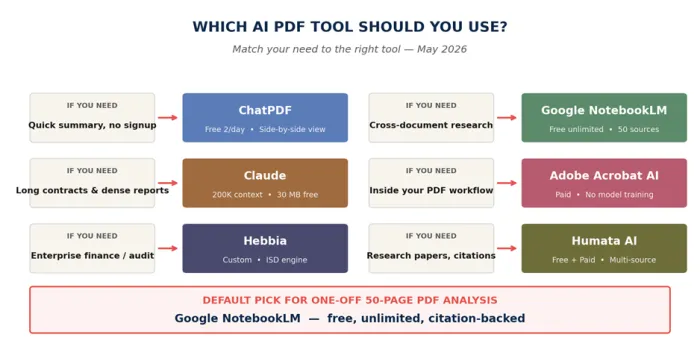
Tool selection matters more than people admit. Three categories cover roughly 95 percent of real-world use cases. The comparison table below maps the most common needs to the strongest tool for each.
| If you need… | Use this tool | Why |
|---|---|---|
| Quick summary, no signup | ChatPDF or Smallpdf | Drag-and-drop interface, output in seconds, no account required |
| Cross-document research | Google NotebookLM | Free, unlimited queries, up to 50 sources per notebook, citation-backed answers |
| Long contracts, dense reports | Claude | 200,000-token context window handles a full 50-page document without chunking |
| Embedded in your PDF workflow | Adobe Acrobat AI Assistant | Works inside Acrobat, source-linked citations, no data used to train Adobe's AI models |
| Enterprise finance, audit trail | Hebbia | Built for investment banks; Iterative Source Decomposition rather than standard RAG |
| Research papers, citations | Humata AI or NotebookLM | Source-linked answers across multiple academic documents |
Default recommendation: for most users analyzing a single 50-page PDF, Google NotebookLM is the strongest free option in 2026. Unlimited queries, every answer grounded in source citations, and an audio overview feature that turns the document into a podcast-style summary if you prefer to listen.
Minute 2–3: Run the Three-Prompt Sequence
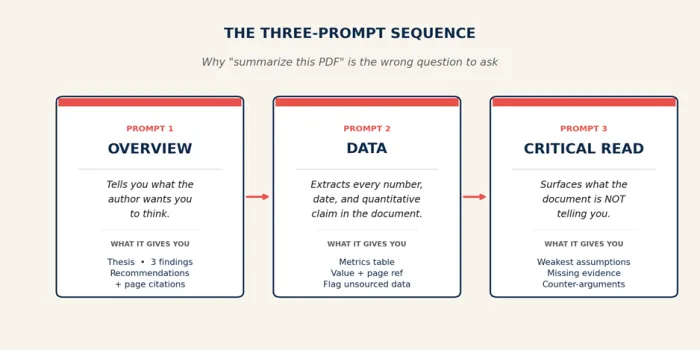
The single biggest mistake people make is asking "summarize this PDF" and accepting the first generic response. Professional analysts use a three-layer approach that consistently outperforms single-pass summarization. Each prompt builds on the last.
PROMPT 1 - THE OVERVIEW Act as a senior analyst. Read this entire document and produce a structured executive summary in 200 words covering: (1) the document's central thesis or purpose, (2) the three most important findings or claims, (3) any explicit recommendations or conclusions. Cite page numbers for each key point. |
PROMPT 2 - THE DATA EXTRACTION Extract every quantitative claim from this document - statistics, percentages, dollar figures, dates, growth rates, sample sizes. Format as a table with columns: Metric | Value | Page Reference | Context. Flag any numbers that lack source attribution within the document itself. |
PROMPT 3 - THE CRITICAL READ Identify the three weakest arguments or assumptions in this document. For each, note: what assumption is being made, what evidence supports it (or what evidence is missing), and what a critical reader who disagreed with the document might propose as an alternative interpretation. |
The third prompt is the differentiator. It surfaces what the document is not telling you. An overview tells you what the author wants you to think. The critical read tells you where the author's argument is weakest - which is the information you actually need to make decisions, ask sharper questions, or push back in a meeting.
Minute 3–4: Verify the Citations
This is the step most users skip, and it is the reason AI-generated summaries occasionally get torched in court, in board meetings, or in peer review. Hallucination rates on factual claims have fallen significantly across major AI models, but they remain non-zero. A 30-second verification of the three or four claims you will actually cite is the difference between professional and unprofessional use of the tool.
Tools like NotebookLM, Adobe Acrobat AI Assistant, and Hebbia provide clickable in-line citations that scroll directly to the source paragraph. ChatGPT and Claude do not include native citations for uploaded PDFs by default. For these tools, ask the AI to quote the exact sentence supporting each major claim, then use Ctrl+F to confirm it appears in the original document.
Minute 4–5: Structure the Output
Raw AI output rarely fits your actual workflow. The final minute reformats the analysis for the situation you are walking into. Add one closing prompt:
PROMPT 4 - THE REFORMAT Reformat the analysis above as: (a) a one-sentence headline that captures the document's core takeaway, (b) three bullet-point key takeaways suitable for an executive briefing, (c) a five-question Q&A I could use to brief a colleague who has not read the document. |
This converts the AI's analysis from raw output into something usable in a meeting, an email, or a Slack message. It is the difference between "I read the PDF" and "I understood the PDF well enough to teach it to someone else."
The Top AI PDF Tools in 2026, Compared Honestly
Every tool below has been tested on real 50-page documents across legal, financial, academic, and technical domains. The summaries reflect strengths and limitations as of May 2026.
Google NotebookLM (Free)
The strongest free option available. Unlimited queries, up to 50 sources per notebook, audio overviews, and every answer grounded in citations. Built on Google's infrastructure with stronger privacy commitments than most consumer AI tools. Limitations: requires a Google account, no API access, and the interface is built for personal research rather than team collaboration.
Claude (Free + Paid)
The best general-purpose AI for long, dense documents. The 200,000-token context window handles a 50-page PDF in a single pass without chunking, which preserves accuracy and cross-references across the full document. Particularly strong on contracts and technical reports where context across distant sections matters. Free tier handles documents up to 30 MB.
ChatGPT (Free + Paid)
Strongest at cross-document analysis when multiple PDFs need to be compared in a single session. Excellent at generating structured outputs - spreadsheets, formatted tables, comparative matrices. The free tier is more restricted than Claude's for document analysis.
ChatPDF (Free + Paid)
The fastest no-signup option. Side-by-side interface displays the chat alongside the source document, with clickable citations that scroll to the exact source location. Free plan analyzes 2 documents per day with limited questions. Best for one-off quick reads rather than ongoing research.
Adobe Acrobat AI Assistant (Paid)
The strongest option for users who already work in Acrobat. AI is integrated directly into the PDF reading experience, with citations linked back to source. The PDF Spaces feature handles up to 100 documents at once for paid users. Adobe explicitly states that customer content is not used to train its AI models - a meaningful guarantee for sensitive documents.
Humata AI (Free + Paid)
Built for researchers and analysts working with technical material - scientific papers, financial filings, legal documents. Cites sources across multiple documents in a single response. Less conversational than ChatPDF, more rigorous on data extraction.
Hebbia (Enterprise)
Purpose-built for investment banks, asset managers, and private equity firms. Uses Iterative Source Decomposition rather than standard retrieval-augmented generation, which improves accuracy on complex multi-document queries. Every claim links to the exact source paragraph for compliance and audit purposes.
Power Prompts That Outperform "Summarize This PDF"
Generic prompts produce generic summaries. Role-based prompts that assign the AI a specific professional perspective and demand a structured output format consistently outperform open-ended requests. Here are five prompts tested across hundreds of real documents.
For Contract Review
Act as a contracts attorney. List every clause related to liability, termination, indemnification, confidentiality, and dispute resolution. For each, quote the exact contractual language, identify the page number, and flag any unusual terms a typical commercial contract would not include.
For Research Papers
Act as a peer reviewer for a top-tier journal. Identify the central research question, the methodology, the key findings with their statistical significance, the limitations the authors acknowledge, and the limitations the authors did not acknowledge but should have.
For Financial Reports
Act as a buy-side analyst. Extract revenue, gross margin, operating margin, free cash flow, and year-over-year growth for each reporting segment. Highlight any deviations from prior quarters and flag accounting changes mentioned in the footnotes.
For Compliance Documents
Act as a compliance officer. List every obligation, deadline, and penalty mentioned in the document. For each, note who is responsible, what action is required, what the deadline is, and what the consequences of non-compliance are.
For Risk Assessment
Act as a risk management officer. List every risk mentioned - financial, operational, legal, reputational. Categorize impact as Low, Medium, or High. Extract any mitigation strategies the document proposes. Flag risks that lack proposed mitigation as critical gaps requiring follow-up.
The pattern is consistent: assigning a specific professional role and demanding a structured output format produces dramatically better results than open-ended requests. The role narrows the AI's interpretation. The format forces completeness.
Five Common Pitfalls to Avoid

• Trusting the first answer. AI summaries can omit critical caveats from the original document. Always run a verification prompt: "What information from this document was not included in the previous summary that a careful reader would want to know?"
• Using scanned PDFs without OCR. If responses feel vague or page numbers seem wrong, the input is likely image-based. Run dedicated OCR before uploading.
• Ignoring tables and figures. AI tools handle prose better than dense numerical tables and complex charts. For data-heavy documents, ask the AI explicitly to extract every table and footnote separately.
• Single-pass analysis on very long PDFs. For documents over 100 pages, hierarchical summarization - summarize each section first, then synthesize the section summaries - produces meaningfully better results than asking for a single summary of the whole.
• Sharing sensitive PDFs without checking the data policy. Free-tier ChatGPT and Claude may use uploaded data for model training unless the user opts out. For confidential documents - contracts, medical records, financial filings - use NotebookLM, Adobe Acrobat AI Assistant, or local tools with explicit no-training policies.
When to Use AI PDF Analysis (and When to Read the Document)
AI document analysis is not a replacement for reading. It is a triage tool that determines which documents deserve full reading and which can be summarized.
Use AI when:
• Initial triage - deciding whether a document warrants deeper attention.
• Information extraction - pulling specific facts, dates, figures, or quotes.
• Cross-document synthesis - comparing five or more PDFs on a similar topic.
• Recurring document types - where structure is consistent and patterns emerge across documents.
Read the document yourself when:
• High-stakes legal review - contract negotiations where every word matters.
• Technical specifications you will implement - where ambiguity creates downstream errors.
• Creative or persuasive content - where the prose itself, not the takeaways, is the point.
• Anything you may be cross-examined on - AI summaries do not survive deposition.
The Bottom Line
A 50-page PDF does not need to consume 90 minutes of your day. With a clean source file, the right tool, a three-prompt sequence, and a 30-second citation check, the entire analysis is complete in under 5 minutes - and the resulting summary is often better-structured than what you would produce reading the document yourself.
The professionals who have integrated this workflow into their day are not reading less. They are reading more, faster, and triaging better. They reserve their full attention for the documents that genuinely warrant it, and they spend the time they save on the work that actually moves their projects forward.
Pick one tool from this guide. Run the three-prompt sequence on the next PDF that lands in your inbox. The time you save on the very first document will pay for the learning curve of the entire workflow - and within a week, you will not remember how you used to do this.